


Connect tools
Slack live handoff
Connect your Slack workspace once, pick a channel per agent, and let support staff reply from Slack threads while visitors stay on your website widget.
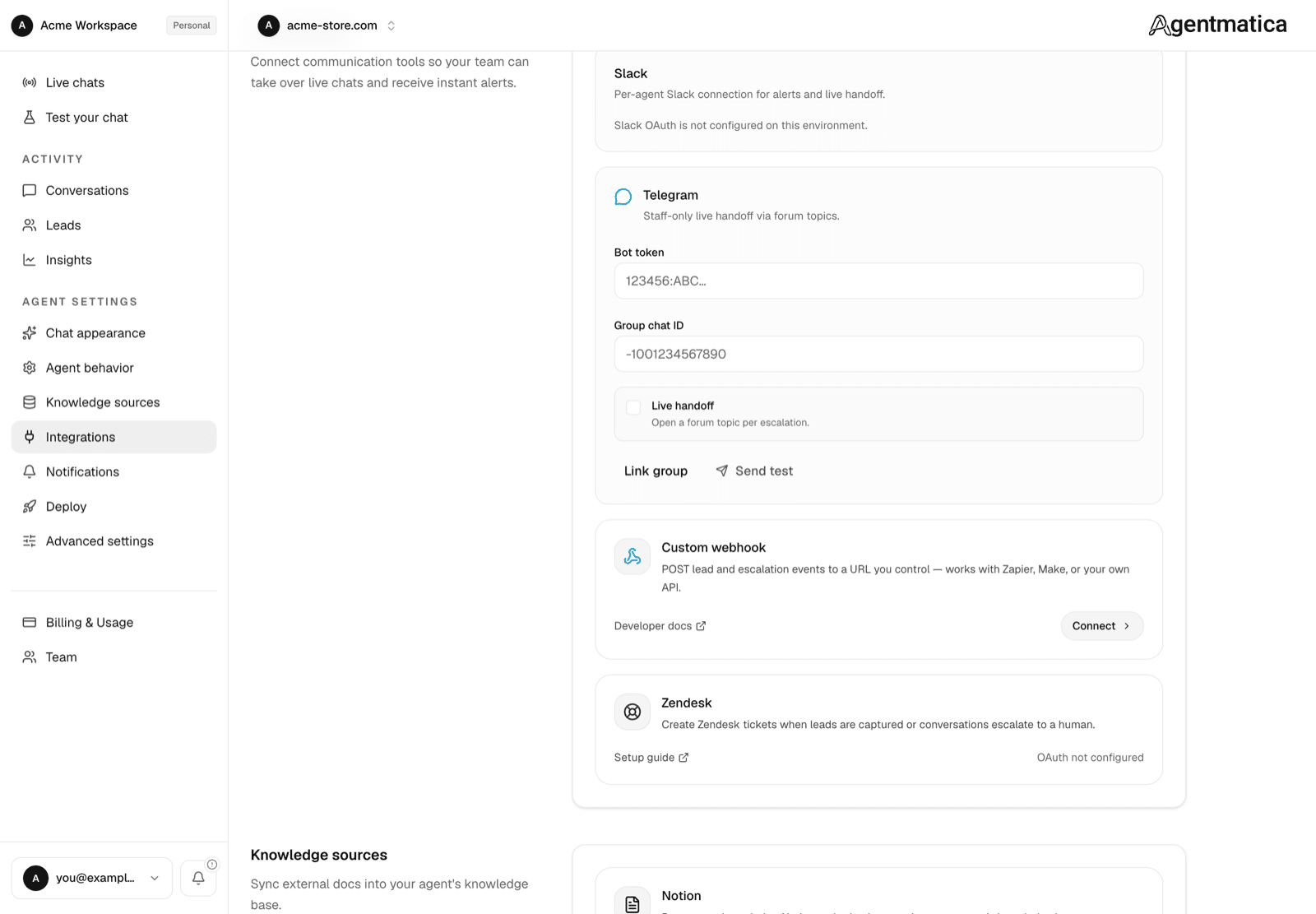
Connect Slack
- Open the agent → Integrations → Team Handoff → Slack.
- Click Connect Slack and approve the Agentmatica app for your workspace.
- Pick the channel where escalations should land.
- Click Send test — you should see a confirmation in Slack within a few seconds.
What to enable
- Lead captured — posts when a visitor leaves contact info.
- Escalation alert — one-way alert when the agent escalates but live handoff is off.
- Live handoff — opens a threaded conversation in Slack. Staff replies in the thread reach the visitor in the widget; visitor messages appear in the thread.
Slack app setup (self-hosted / tunnel)
If you run Agentmatica yourself, create a Slack app at api.slack.com/apps with:
- OAuth redirect:
{APP_URL}/api/integrations/slack/callback - Event subscriptions URL:
{APP_URL}/api/integrations/slack/events - Interactivity request URL:
{APP_URL}/api/integrations/slack/interactions - Bot token scopes:
chat:write,channels:read,channels:history,groups:read,groups:history,channels:join,users:read,users:read.email,reactions:write - Bot events:
message.channels,message.groups
The channels:history / groups:history scopes are required for Slack to deliver thread replies to Agentmatica. After changing scopes or events, click Save in Slack and reinstall the app to your workspace, then reconnect from Integrations → Team Handoff.
Invalid permissions requested
If Connect Slack shows Invalid permissions requested, Agentmatica is asking for a scope that is not listed under Bot Token Scopes in your Slack app. This often happens when a scope was added under User Token Scopes by mistake — move it (or add it) to Bot Token Scopes instead, save, then try Connect again. Slack also requires users:read and users:read.email to be requested together; add both under Bot Token Scopes.
Apps managed by an App Manifest must include the same scopes under oauth_config.scopes.bot in the manifest YAML/JSON, not only in the dashboard UI.
To connect without visitor feedback reactions while fixing scopes, set SLACK_OAUTH_INCLUDE_REACTIONS=false on the server, redeploy, connect Slack, then re-enable reactions after Bot Token Scopes are correct.
How live handoff works
When the AI escalates, Agentmatica opens a Slack thread for your team but keeps the AI active until a teammate sends the first reply in that thread. Visitor messages are mirrored into the thread so staff can follow along.
Work entirely from Slack — reply in the thread to reach the visitor. No need to open the dashboard during an active handoff.
Handoff control
The top message in each handoff thread has a conversation-level control: Take over switches to manual mode (your thread replies go to the visitor), and Return to AI hands control back while keeping the thread open for the next escalation. The button and status line update in place so you can run multiple handover cycles in the same thread.
AI draft replies
Each mirrored visitor message includes a Draft AI reply button. It opens an editable draft in a Slack modal — edit the message, then click Send to visitor. Product cards and choices travel as [[products]] / [[choices]] shortcodes in the draft (included automatically when you send). You can also type draft in the thread for the latest visitor message.
After a teammate takes over, the widget switches to manual mode. If the teammate goes idle for about five minutes, the conversation returns to the AI automatically and the thread gets a closing note.
You can also use the dashboard live monitor to take over immediately or click Return to AI agent at any time.
If a teammate has taken over but goes quiet, the visitor can send a few follow-ups (e.g. “you still there?”) — after three messages with no staff reply, Agentmatica detects common waiting phrases (English, Spanish, Portuguese, Hindi, and Chinese) and hands the chat back to the AI so the visitor is not left hanging.
Legacy webhooks
If you previously pasted an incoming webhook URL, connect Slack via OAuth instead — it covers alerts and live handoff in one setup. Webhook URLs still work as a fallback until you migrate.