


Connect tools
Zendesk
Connect your Zendesk account with OAuth and automatically create tickets when your agent captures a lead or escalates a conversation to a human.
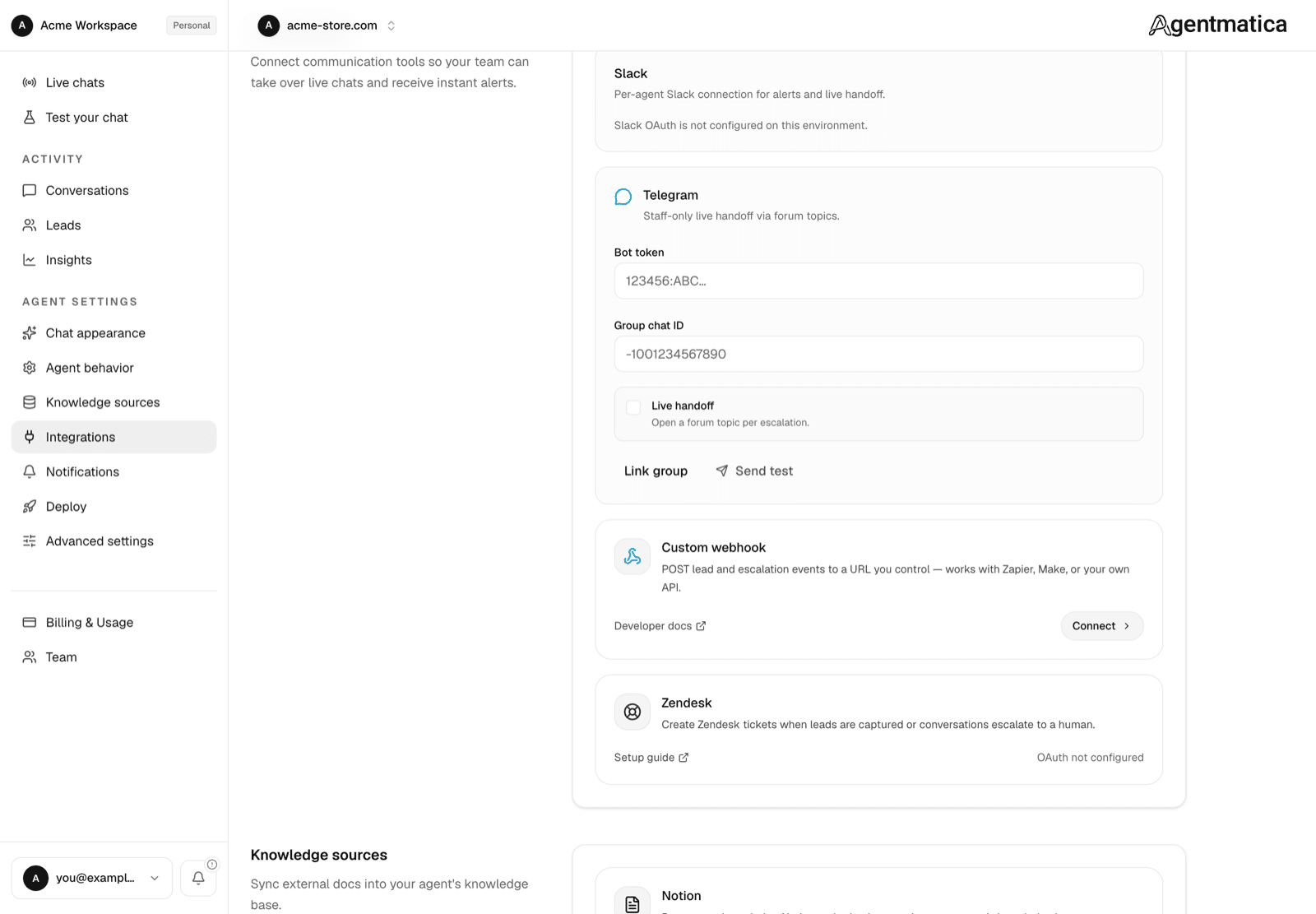
Connect Zendesk
- Open your agent in the dashboard and go to Integrations.
- Under Team Handoff, click Connect on the Zendesk card.
- Enter your Zendesk subdomain (the part before
.zendesk.com). - Click Connect with Zendesk and approve access in Zendesk.
- Choose which events create tickets, optionally set a default group ID, then click Save.
- Use Test lead ticket or Test escalation ticket to verify before going live.
Agentmatica OAuth app (self-hosted)
For local or self-hosted deployments, create a Zendesk OAuth client and configure:
ZENDESK_OAUTH_CLIENT_IDZENDESK_OAUTH_CLIENT_SECRETZENDESK_OAUTH_REDIRECT_URI(optional — defaults to/api/integrations/zendesk/callbackon your app URL)TOKEN_ENCRYPTION_KEY(required to store OAuth tokens)
In Zendesk Admin Center:
- Go to Apps and integrations → APIs → OAuth clients.
- Click Add OAuth client, choose Confidential.
- Set the redirect URL to your Agentmatica callback (e.g.
https://app.example.com/api/integrations/zendesk/callback, orhttp://localhost:3000/api/integrations/zendesk/callbackfor local dev). - Copy the client identifier and secret into your environment variables.
A Zendesk trial account works for development. For production with many customers, request a global OAuth client from Zendesk Marketplace when you are ready to distribute publicly.
Events
- Lead captured — creates a ticket with the visitor's contact details and a link back to the Agentmatica leads dashboard. The visitor is set as the Zendesk requester.
- Conversation escalated — creates a ticket with the escalation reason, summary, and a link to the live conversation. If a lead was captured in the same chat, that email is used as the requester. By default, escalation tickets are skipped when no visitor email is known (configurable on the integration card).
Test tickets are tagged agentmatica_test and use a [TEST] subject prefix.
Default group ID
To route tickets to a specific support group, find the group id in Zendesk Admin Center (or via the Groups API) and paste it into the optional Default group ID field on the integration card.
Troubleshooting
- OAuth not configured: set
ZENDESK_OAUTH_CLIENT_IDandZENDESK_OAUTH_CLIENT_SECRETon the server. - Redirect URI mismatch: the redirect URL in Zendesk must exactly match Agentmatica's callback URL.
- Wrong subdomain on reconnect: use Reconnect for the same Zendesk account shown on the card.
- Delivery status and errors appear on the Zendesk card after each attempt.
Custom webhook alternative
Need Zapier or a custom workflow instead of direct Zendesk API access? Use Custom webhook to POST the same events to any URL.