


Run the workspace
Notifications & on-call
Decide which events reach your team, on which channel, and who is on the hook at any given hour.
Two layers
Alerts are configured in two places, and both must be on for a teammate to be notified:
- Per agent — Agent → Notifications sets which events the agent emits and on which channel.
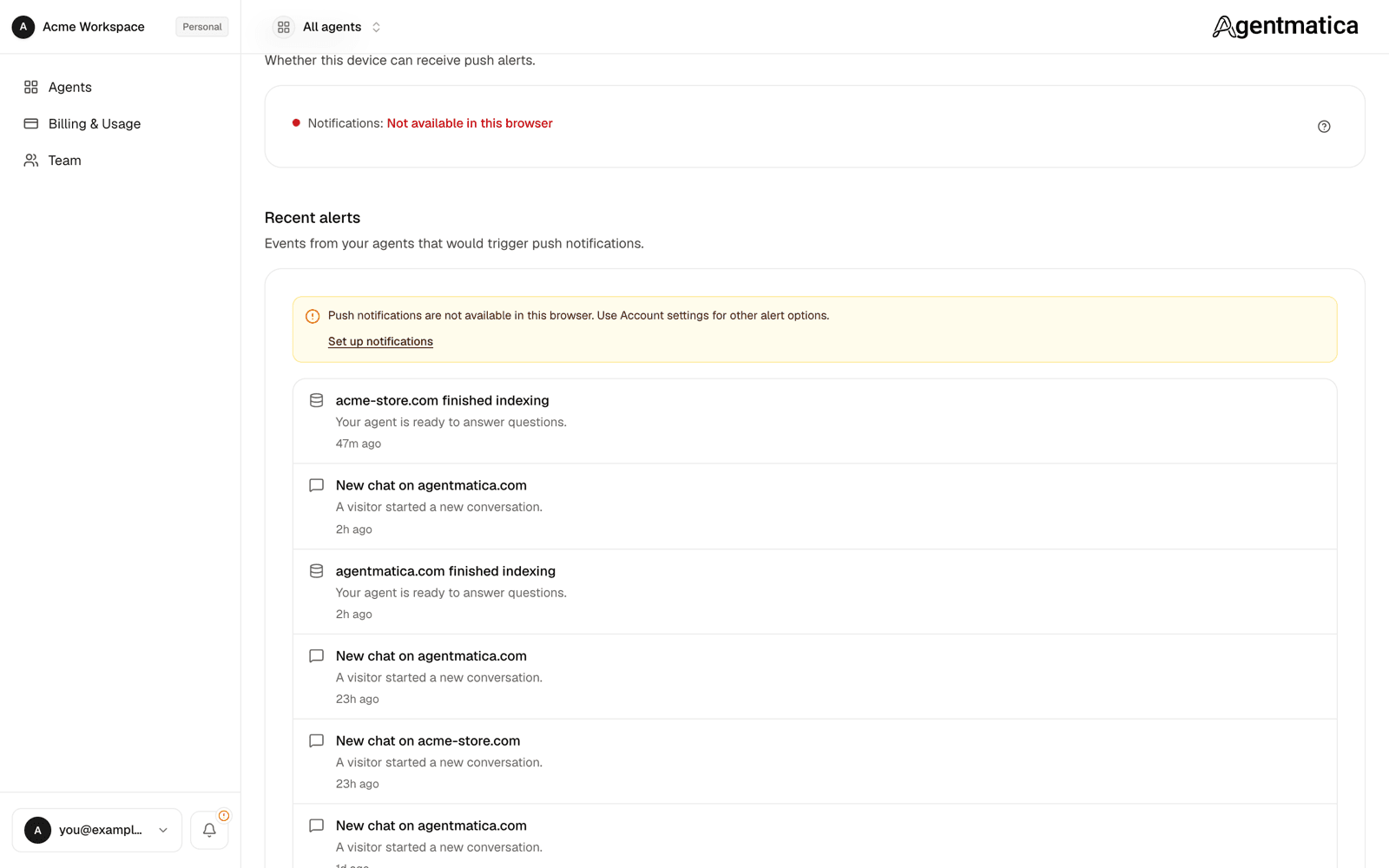
- Per person — each teammate enables push and email for their own account under Settings → Notifications. Push requires allowing browser notifications on that device; the page shows per-device tips and, if the browser has blocked the permission, how to re-enable it.
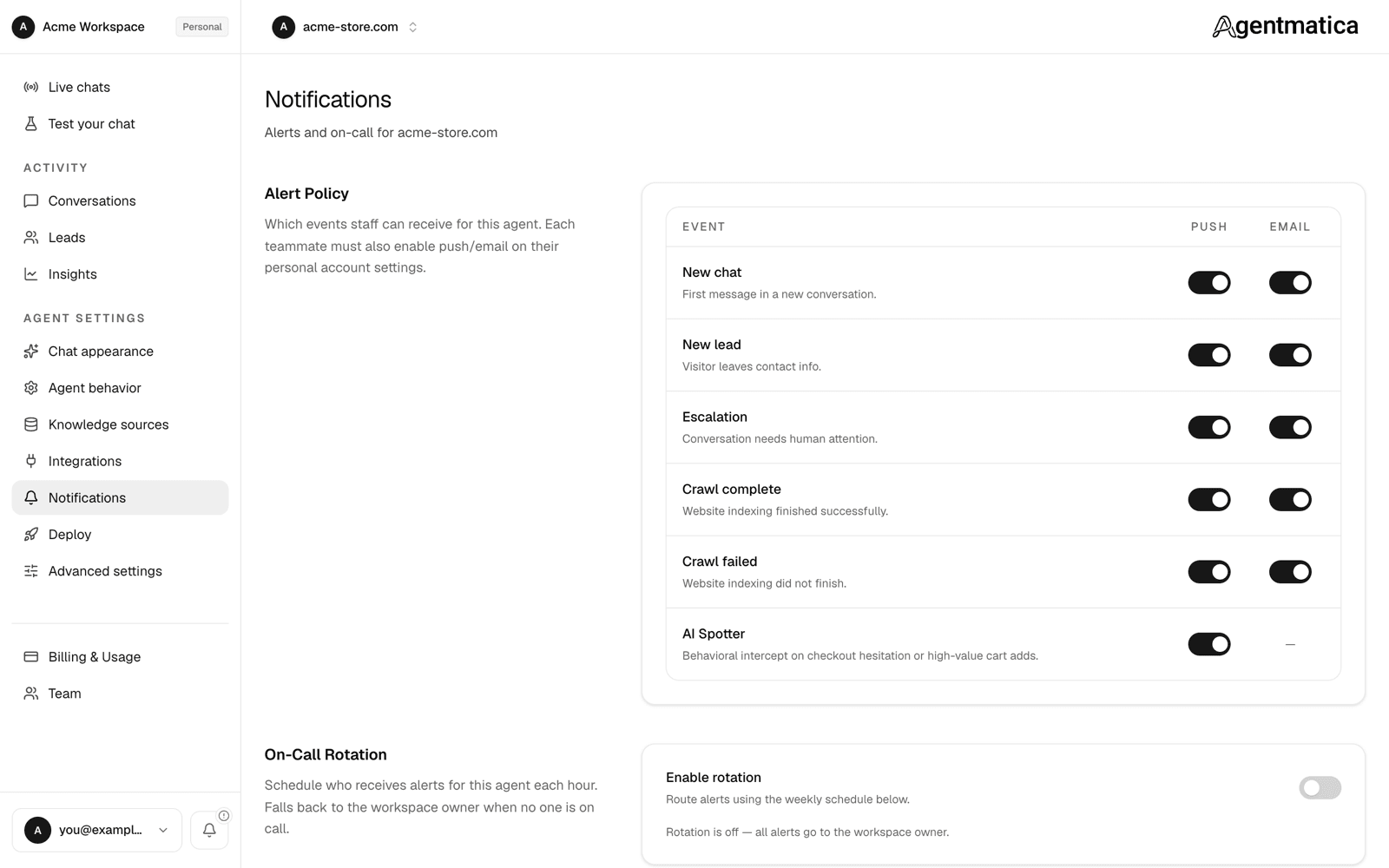
Alert policy
A matrix of events by channel. Defaults for a new agent:
- New chat — push on, email off.
- New lead — push on, email on.
- Escalation — push on, email off.
- Crawl complete — push on, email on.
- Crawl failed — push on, email on. The alert carries the reason, and the same reason is shown on the Knowledge sources page.
Agent-initiated intercepts and upsells do not send an alert. They stay out of conversation history until the visitor replies, views a card, or adds to cart. That engagement fires the regular New chat (and New lead, if they leave contact info). See Behavioral intercept.
Slack, Telegram, webhook, and Zendesk deliveries are configured separately on the Integrations page and are not affected by this matrix.
On-call rotation
By default every assigned member gets every alert. Turn on On-Call Rotation to route alerts to whoever is scheduled for the current hour instead. Pick a timezone (UTC by default), add shifts, and the card shows who is on call right now. When nobody is scheduled for an hour, alerts fall back to the workspace owner.
Only teammates listed under Agent Members can be scheduled. Workspace owners always have access to every agent.
Recent alerts
The bell in the sidebar (and in the mobile bottom bar) opens a feed of recent alerts across the workspace: new chats, leads, escalations, and crawl results, each linking to the relevant conversation or page. The same feed is available under Settings → Recent alerts, so you can catch up even if a push notification was dismissed.