


Get started
Mobile app
The dashboard is an installable web app. Put it on your phone's home screen and you get push alerts for new chats, leads, and escalations, and can reply to live chats from anywhere. No app store, nothing to update by hand.
iPhone and iPad
- Open
agentmatica.comin Safari (other iOS browsers can't install web apps). - Tap the Share button (the square with an arrow) and choose Add to Home Screen, then Add.
- Open Agentmatica from your Home Screen and sign in.
- Go to Settings → Notifications and tap Allow. iOS only delivers web push to the installed app, never to a Safari tab, so do this from the home-screen app.
If you use Focus or Do Not Disturb, add Agentmatica as an allowed app in iOS Settings, or enable Time Sensitive notifications when offered.
Android
- Open
agentmatica.comin Chrome (Edge, Samsung Internet, and Firefox also work). - Tap Install app when the banner appears, or open the browser menu (⋮) and choose Install app / Add to Home screen.
- Open the app, sign in, and allow notifications under Settings → Notifications.
If alerts arrive late, exempt Agentmatica from battery optimization in Android Settings → Apps → Agentmatica.
Desktop
In Chrome or Edge, click the install icon at the right end of the address bar (or the browser menu → Install Agentmatica). The dashboard opens in its own window with a dock or taskbar icon, and desktop notifications work the same way as on mobile.
The in-app prompt
On a phone-sized screen the dashboard shows an install card at the bottom once you've answered the cookie banner. On iPhone it walks through the Share → Add to Home Screen steps; on Android it offers a one-tap Install app button. Dismiss it and it stays hidden for seven days; it never shows inside the installed app.
What you get in the app
- Push notifications for the events enabled under Agent → Notifications: new chat, new lead, escalation, crawl complete, crawl failed.
- Live chats — watch a conversation as it happens, add a private directive, or take over and reply yourself. See Escalation & leads.
- Bottom navigation with the recent-alerts bell, so a missed push is still one tap away.
- Automatic updates — when a new version ships, a small prompt offers to reload. Nothing to download.
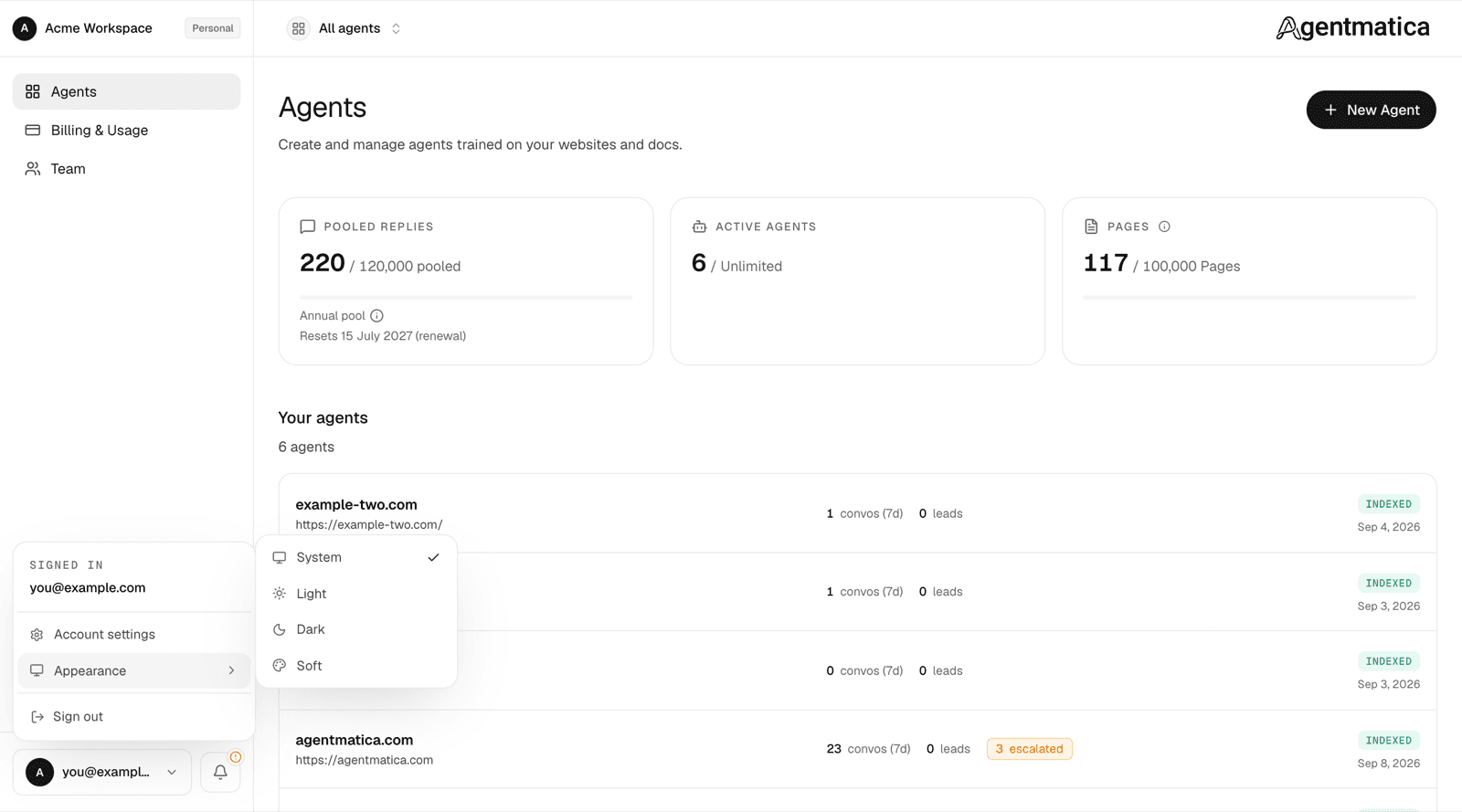
- Theme follows your system light/dark setting by default. Pick System, Light, Dark, or Soft per device from the account menu → Appearance.